Deploy your EZsite website to Wordpress
Publish Your Website
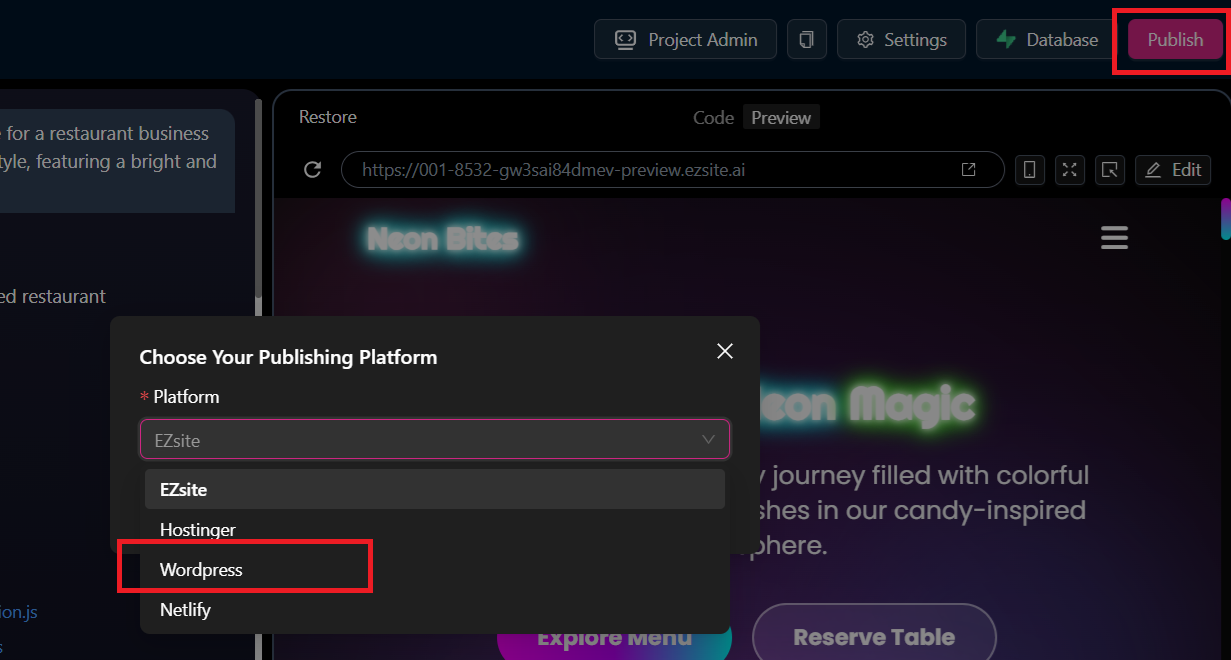
Click the "Publish" button in the top right corner, then select "WordPress" from the dropdown menu in the popup window
Get your Wordpress FTP Credentials (FTP Option)
Get your FTP hostname, username, password, and port from your WordPress hosting provider
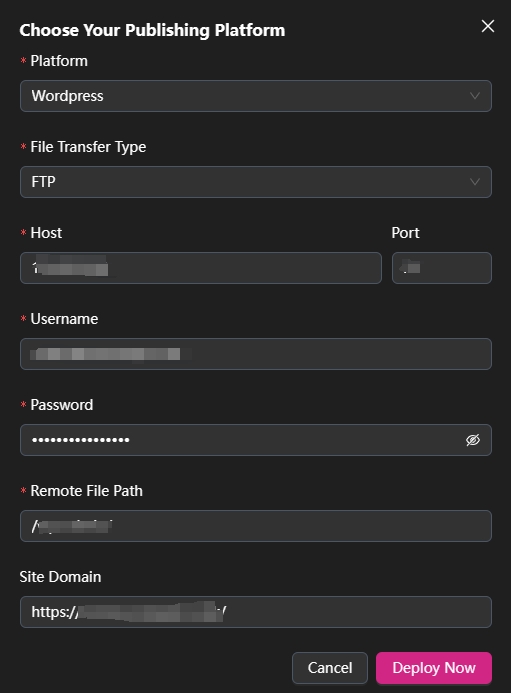
Enter your FTP credentials on EZsite->Your Project->Publish
-
Enter Your File Transfer Type
-
Host: Your FTP Host Server Address, for example, 154.123.123.251
-
Port: Your FTP Port Number, usually 21, (can be empty)
-
Username/Password: Your FTP username/password
-
Remote File Path: Enter your remote file path, must start with
/and end with/, for example,/,/wp-content/,/wp-admin/ -
Site Domain: Your wordpress site domain, for example,
https://example.com, (can be empty)
Deploy to WordPress
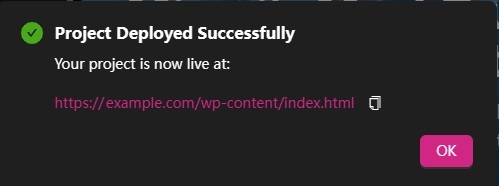
After Click "Deploy Now" Button, a "Project deployed successfully" message shows up
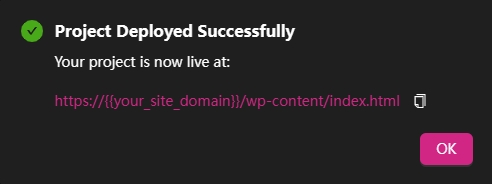
If the domain is empty, you need to manually replace {{your_site_name}} in the deploy URL with your WordPress site domain