Figma for Design
EZsite integrates directly with Figma to import frames and generate web pages and UIs from your designs.
Overview
Figma is a widely used design tool for creating and collaborating on digital product interfaces. With EZsite's Figma integration, you can import Figma frames and instantly turn them into functional layouts.
Figma Frames
EZsite imports a single frame from Figma—not the whole project.
Frames are layers that act as containers to organize other layers—such as shapes, images, and text—into cohesive designs. You can even nest frames within other frames, allowing you to create more complex designs. Frames in Figma design
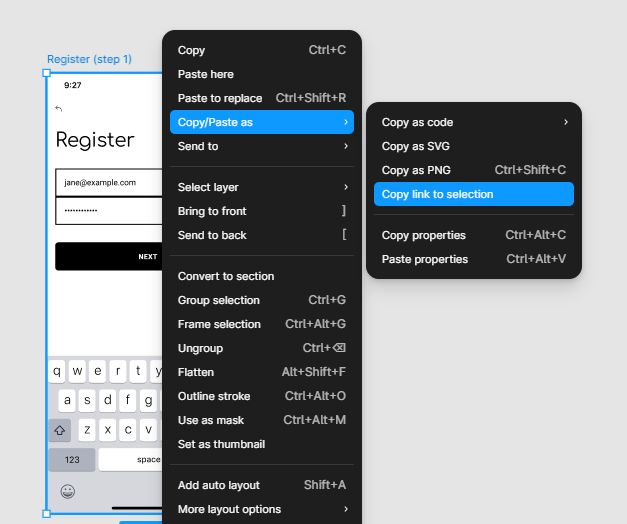
How to Copy a Frame URL
-
Right-click the frame.
-
Select Copy/Paste as → Copy link to selection.
Connect to Figma and Import a Frame
Important: You can only enable Figma Connect after authorizing your Figma account. If you haven't authorized yet, the toggle cannot be selected.
You can authorize Figma from two places:
Option 1: From the Homepage
-
On the
EZsiteHomepage, click Import from Figma. -
If Figma Connect is not authorized, click Authorize Figma and complete the Figma authorization flow.
-
Once authorized, return to the homepage, click Import from Figma again, and enable Figma Connect.
-
Paste the URL of the Figma frame you want to import into the prompt field. Example:
"Build this page: https://www.figma.com/design/xxxxx/xxxxx?node-id=0-1"
Option 2: From Project Settings
-
Open your project and click Settings.
-
Go to MCP Tools.
-
If Figma Connect is not authorized, you will see an Authorize Figma button. Complete authorization first.
-
After authorization, reopen the project and return to Settings → MCP Tools. Now you can enable Figma Connect.
-
Paste your Figma frame URL into the prompt field.