Project Admin Role
How to set up roles in your app in EZsite
Step 1. Create Login Page and Add users
Please refer to Testing the Signup/Signin System for instructions on adding a login page and creating user accounts.
Step 2. Project Admin Page
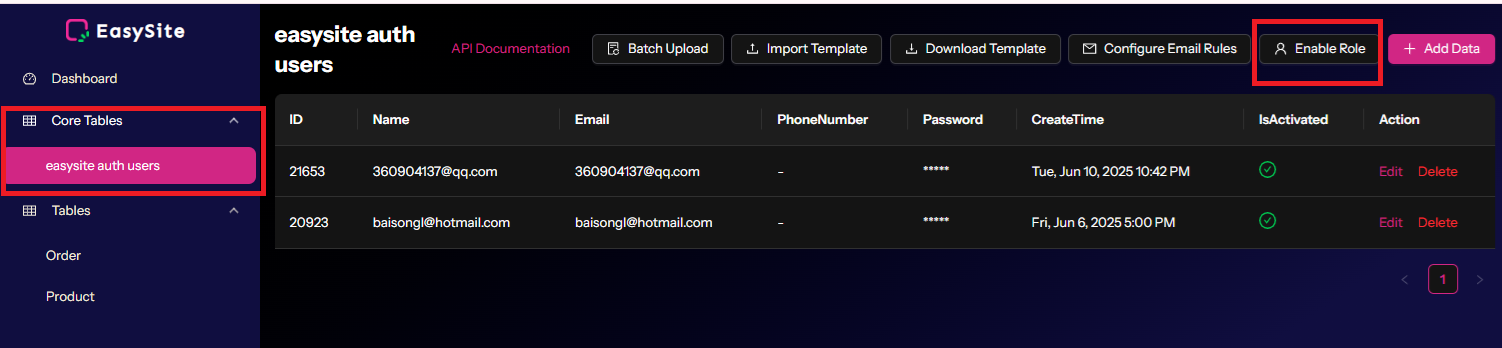
Click the "Project Admin" button at the top. On the newly opened page, you will find the "Enable Role" button.
Step 3. Enable Role
Click the "Enable Role" button to add the role feature to your project.
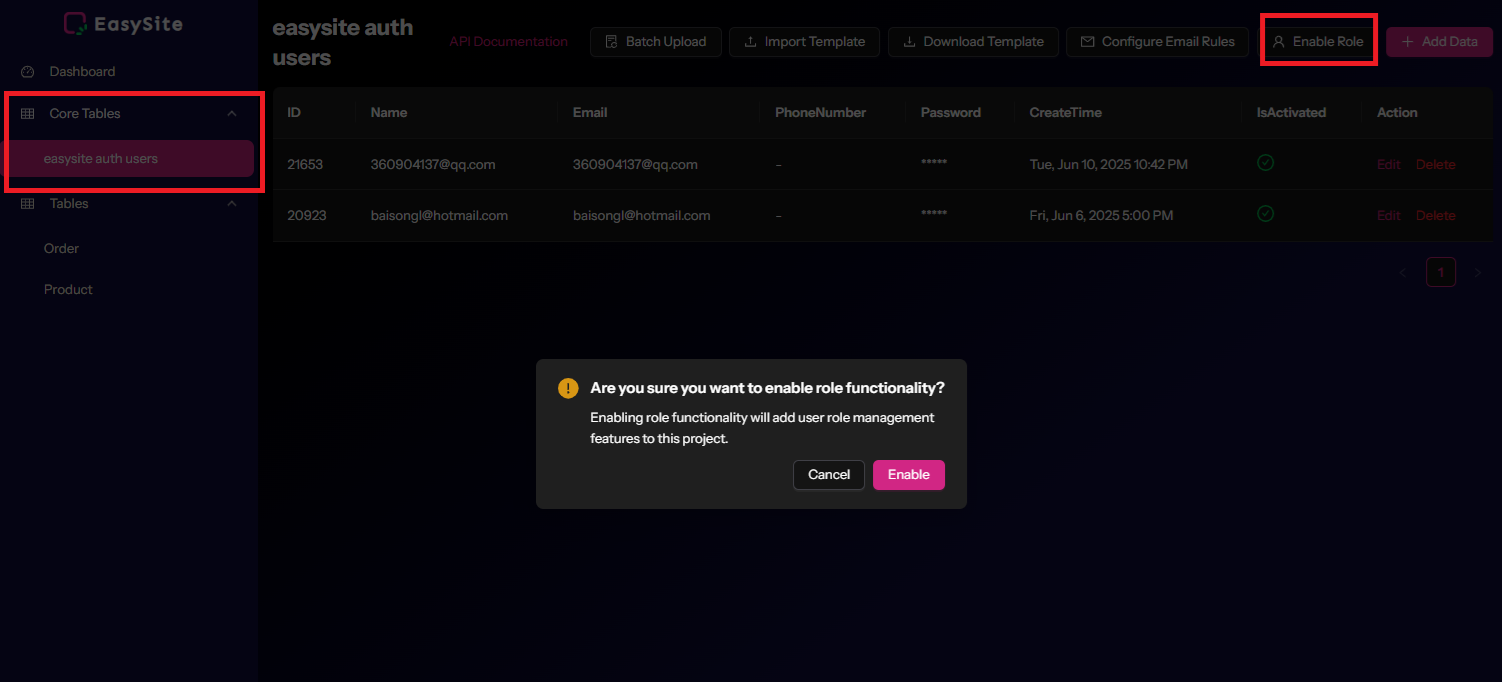
Click the "Enable" button in the popup window. A new table will be created in the Core Tables section.
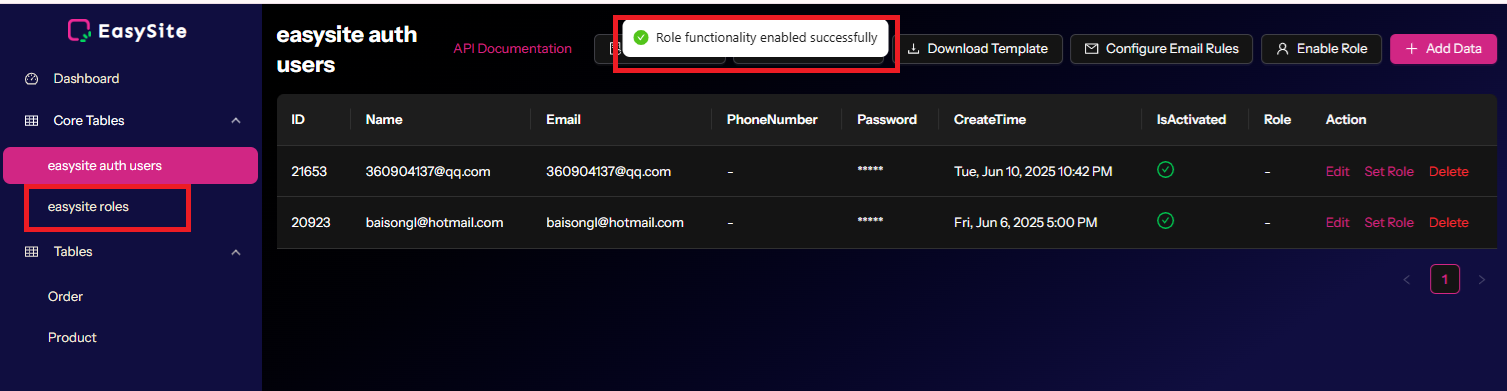
Step 4. Assign Role to Users
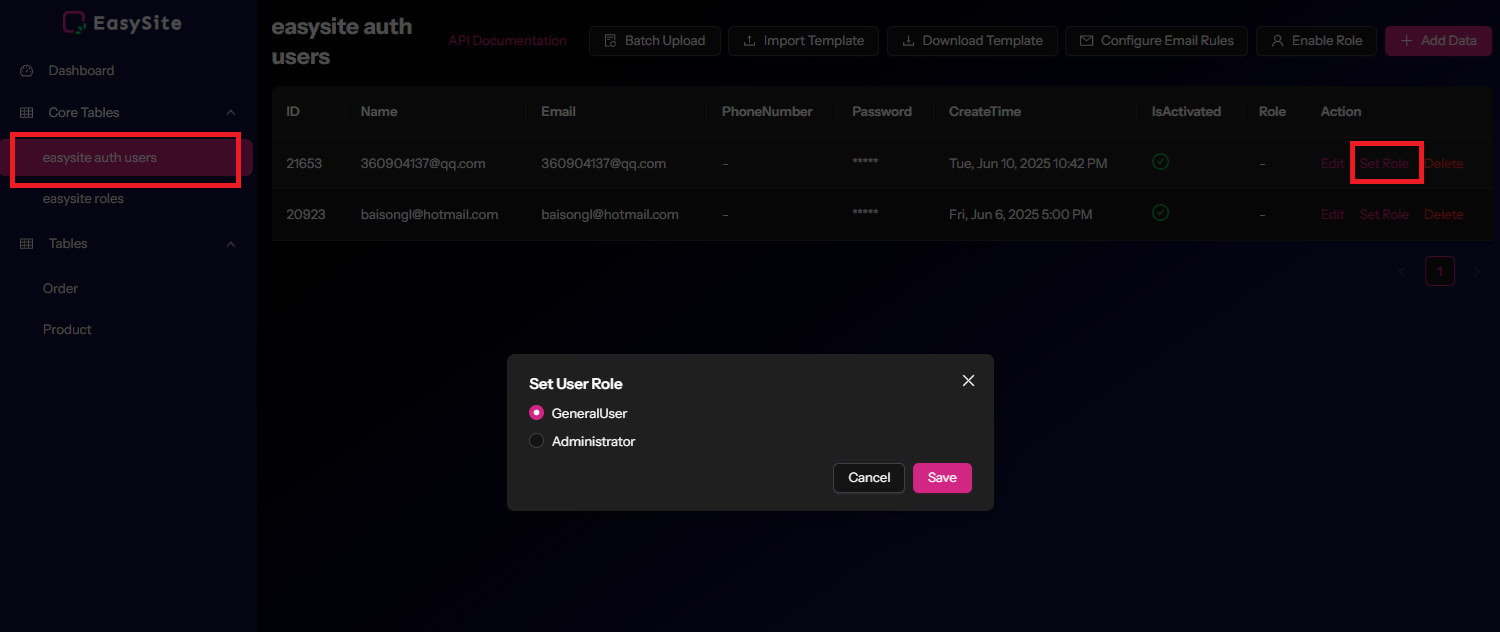
Return to the "easysite auth users" section and click the "Set Role" button to assign roles to existing users.